Navigation & Gestures
Mekuru provides tap and swipe controls for page navigation, with right-to-left reading supported for Japanese books by default.
Tap Zones
The EPUB reader uses three main tap zones:
- Left edge - go forward in RTL mode, or backward in LTR mode
- Right edge - go backward in RTL mode, or forward in LTR mode
- Center - show or hide the reader controls
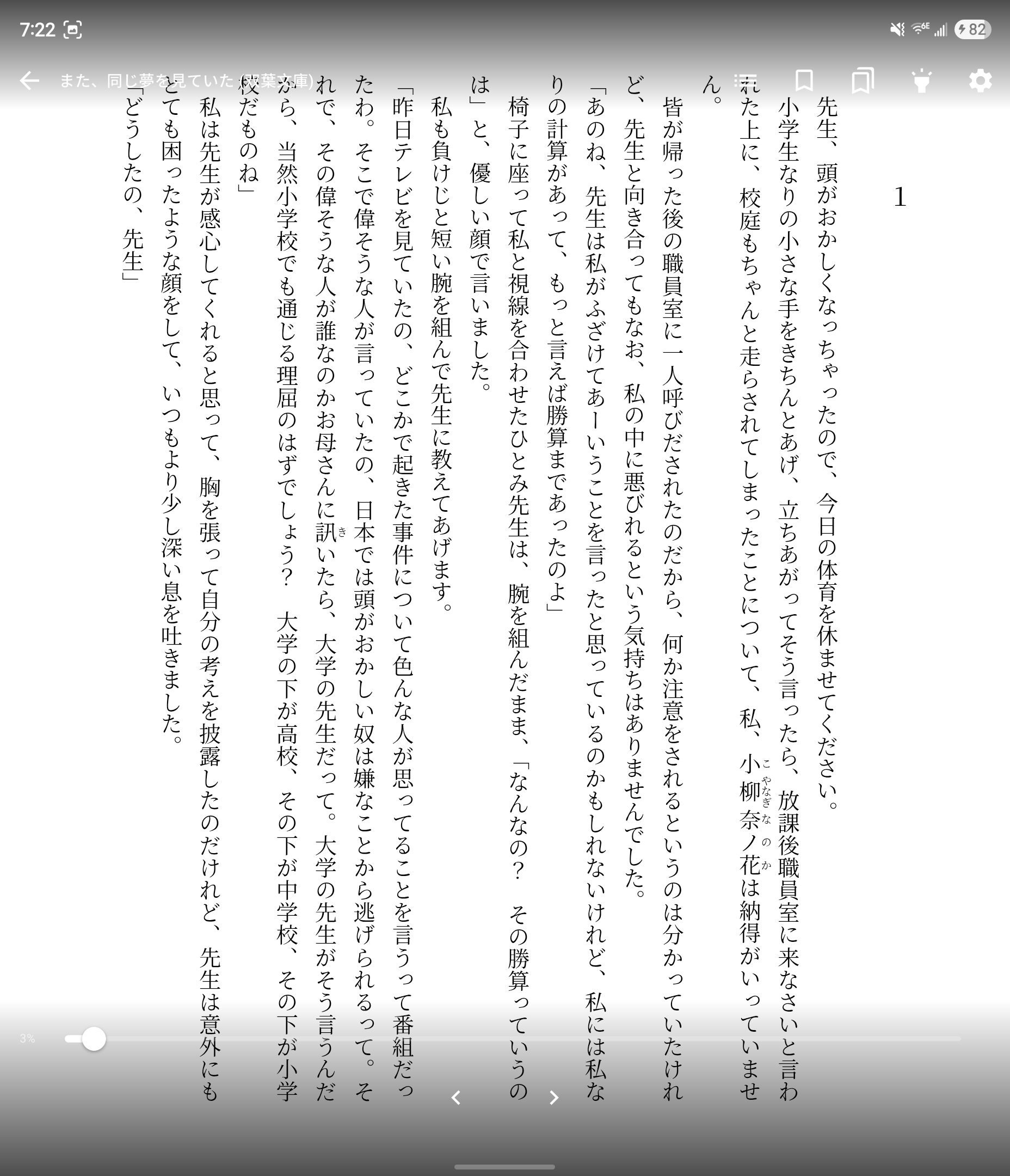
Swipe Navigation
Swipe horizontally to turn pages. The swipe direction follows the book's current reading-direction setting:
- RTL - swipe left to go forward, swipe right to go back
- LTR - swipe right to go forward, swipe left to go back
Swipe sensitivity is part of the app-wide reading defaults described in Display Settings.
Table of Contents
Tap the center of the screen to reveal the reader controls, then open the table of contents from those controls to jump between chapters.
Reading Progress
Mekuru saves your reading position automatically. When you reopen a book, it resumes from the saved location.
Per-Book Quick Settings
Some reader options are configured inside the reader for the current book only:
- Vertical Text - only when the book supports it
- Reading Direction - RTL or LTR for that book
- Disable Links - tap linked text for lookups instead of navigation
These are separate from the global defaults in Display Settings.
Word Lookup
Tap a word while reading to open the lookup sheet. Mekuru automatically detects word boundaries, then searches your enabled dictionaries. See Looking Up Words for the full lookup behavior.