Setting Up Dictionaries
Mekuru uses offline dictionaries for word lookups. It supports the same Yomitan formats used by the browser extension, plus several built-in downloads.
Supported Sources
You can add dictionaries in three ways:
- Yomitan
.zip- the standard format used by Yomitan and older Yomichan dictionary packs - Yomitan collection
.json- a backup export that can contain multiple dictionaries - Built-in downloads - free packs from Settings > Downloads, including JMdict and KANJIDIC
Importing a Dictionary File
- Open the Dictionary tab.
- Tap the Manage Dictionaries button in the top-right corner.
- Tap + in the Dictionary Manager.
- Select a supported
.zipor.jsonfile. - Wait for the import to finish. Large dictionaries can take a moment.
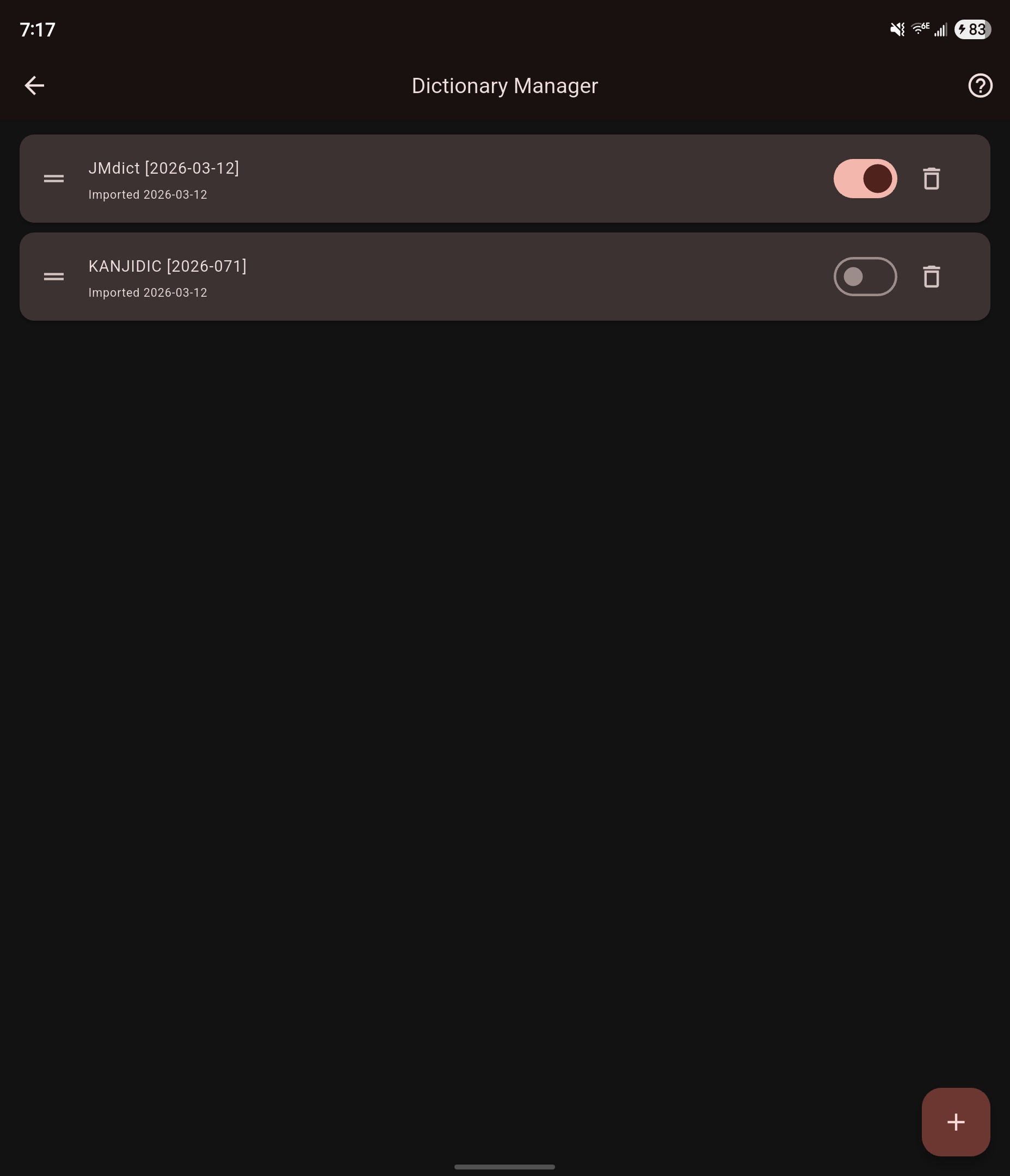
Tip: You can import multiple dictionaries. Mekuru merges enabled dictionaries into the same lookup workflow and orders them based on the order it appears in the dictionary manager.
Using Built-in Downloads
If you do not want to find dictionary files manually, open Settings > Downloads and install the built-in packs there. Those downloads are imported for you automatically.
After Import
Once a dictionary is available, it can be used for:
- Tap-to-lookup while reading
- Search in the Dictionary tab
- Compound word resolution for multi-token matches
For enabling, disabling, reordering, or deleting dictionaries, see Managing Dictionaries.