Bookmarks & Highlights
Mekuru lets you save positions and mark text while reading EPUB books.
Bookmarks
Bookmarks save your current reading position so you can jump back later.
- Add a bookmark - tap the bookmark icon in the reader toolbar
- View bookmarks - open the bookmarks list from the reader or from the EPUB book's long-press actions in the library
- Jump to a bookmark - tap a bookmark in the list
- Edit the bookmark note - long-press a bookmark in the list
- Delete a bookmark - swipe left on it in the list
Bookmarks are saved per book and stay available between sessions.
Highlights
Pro feature - Book highlights require the one-time Pro upgrade.
Select text in the reader, then use the highlight controls to save a marked passage.
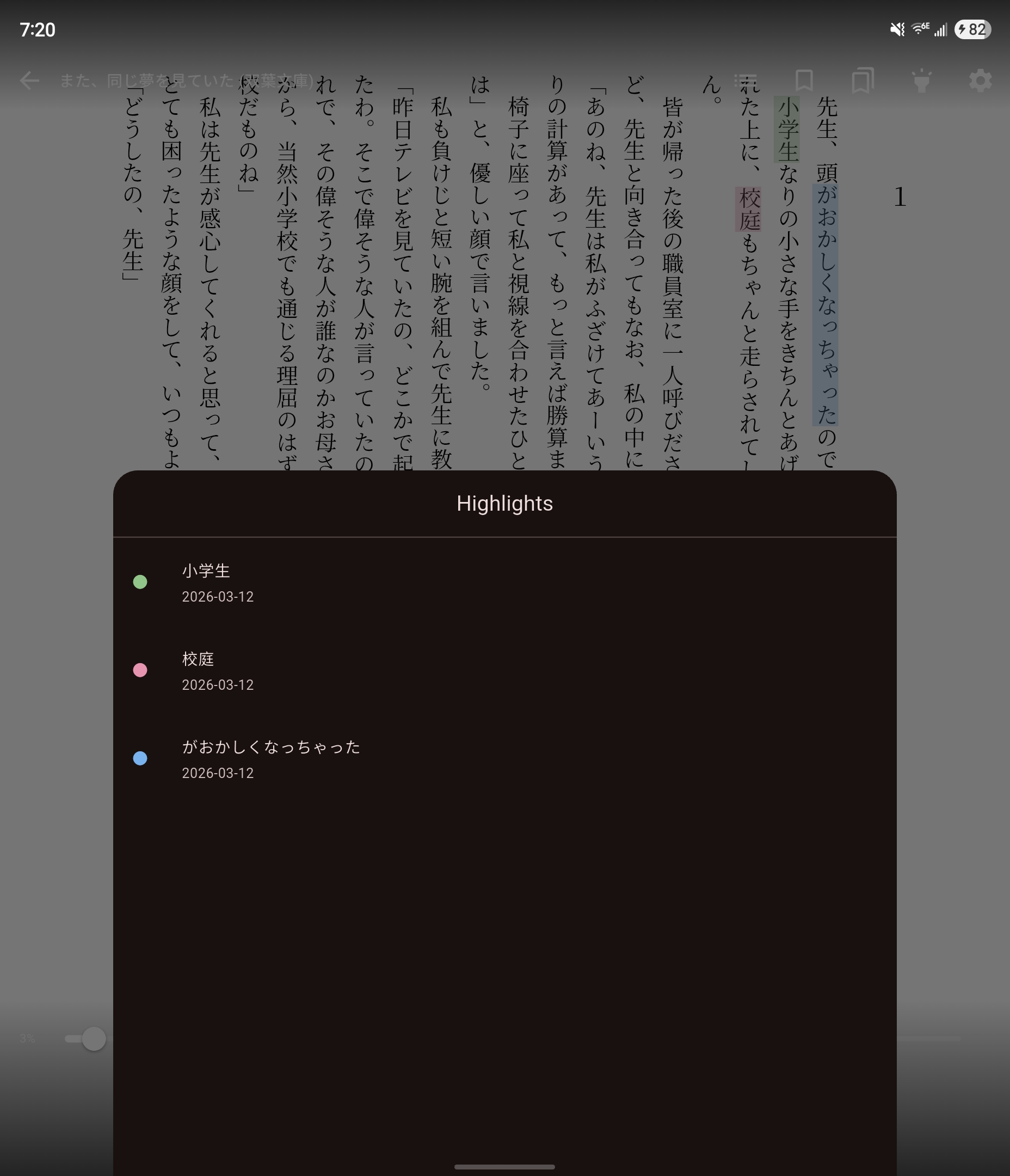
Creating a Highlight
- Select text in the reader.
- Use the highlight controls to choose a color.
- Optionally expand the selection to the full sentence if you want to copy, share, or highlight the whole sentence.
- Add a note later if needed.
Managing Highlights
- View highlights - open the highlights list from the reader or from the EPUB book's long-press actions in the library
- Jump to a highlight - tap it in the list
- Edit the highlight note - long-press it in the list
- Delete a highlight - swipe left on it in the list
Highlights are restored automatically when you reopen the book.