Remote OCR
Pro feature - Remote OCR requires the one-time Pro upgrade.
Remote OCR extracts text from CBZ manga pages so you can tap words and look them up.
How the Workflow Works
- Import a
.cbzfile from the Library tab. - Open Settings > Custom OCR Server and enter your own server URL plus shared key.
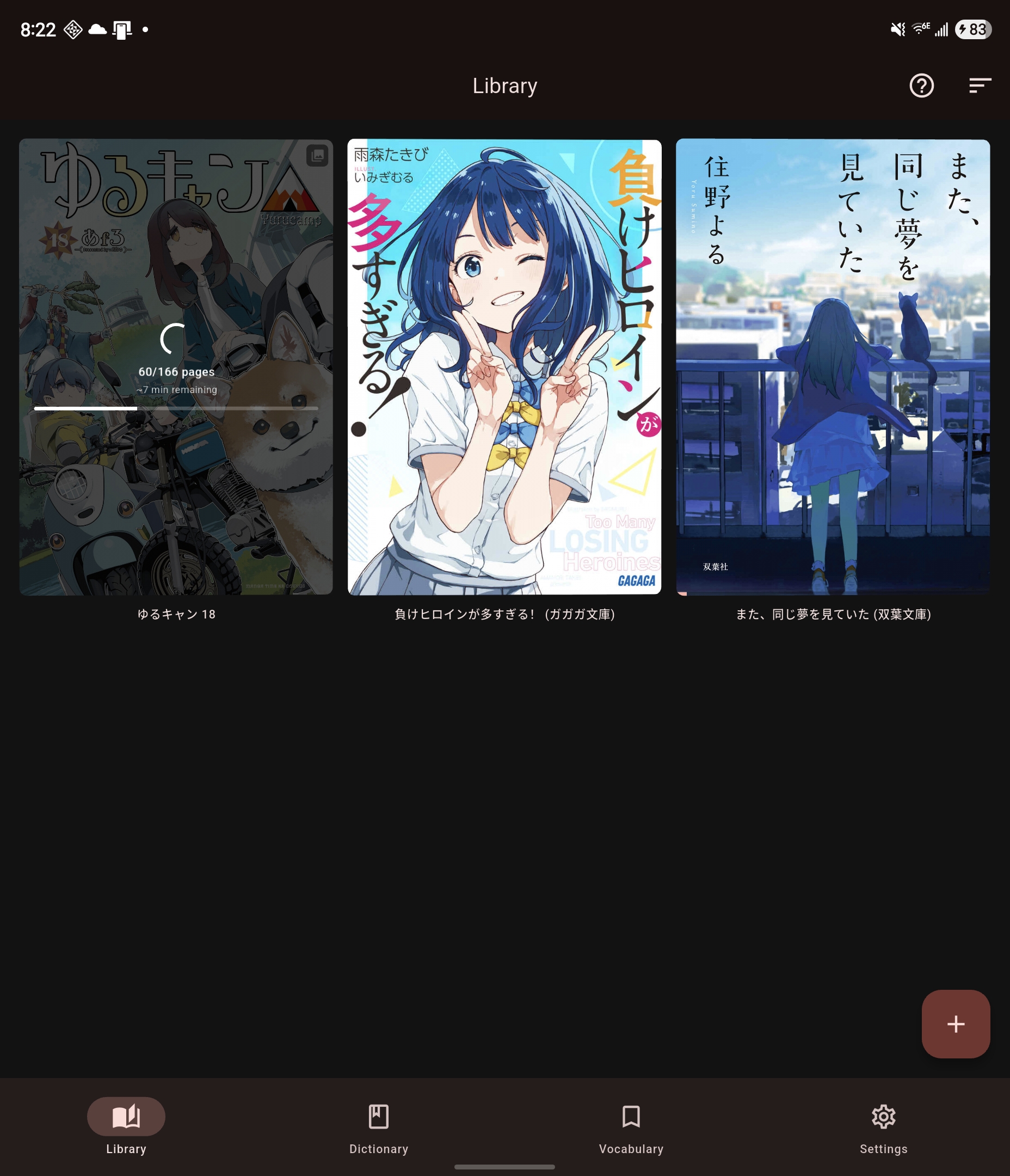
- Long-press the manga item in the library.
- Choose Run OCR.
- Mekuru uploads page images to your configured server and processes pages in the background.
- Once text overlays are available, open the manga and tap the detected words.
Background Processing
OCR runs in the background, so it can continue after you leave the library screen.
Depending on the current state, the long-press actions can change to:
- Resume OCR - continue a partial pass
- Pause OCR - pause the background job and keep completed work
- Delete OCR - remove OCR text and overlays; for replaced Mokuro/HTML books this restores the original imported OCR
- Build Word Overlays - rebuild tap targets when OCR text exists but word segmentation is still missing
Pro Access
- Pro is a one-time purchase.
- Restoring or buying Pro can require linking a Google account first.
- The Settings screen can show Sign In to Restore Pro until that link is complete.
Lookup Integration
Once OCR text is available, the detected words behave like Mokuro overlays and open the same dictionary lookup sheet used elsewhere in the app.
Server Setup
Remote OCR requires a self-hosted OCR server. See the Custom OCR Server guide for setup instructions.