Reading Manga
Once you have imported manga, tap it in the library to open the manga reader.
Navigation
- Swipe to move between pages in single-page or spread mode.
- Tap the left or right edges to move backward or forward.
- Page direction follows the current manga reading-direction setting.
View Modes
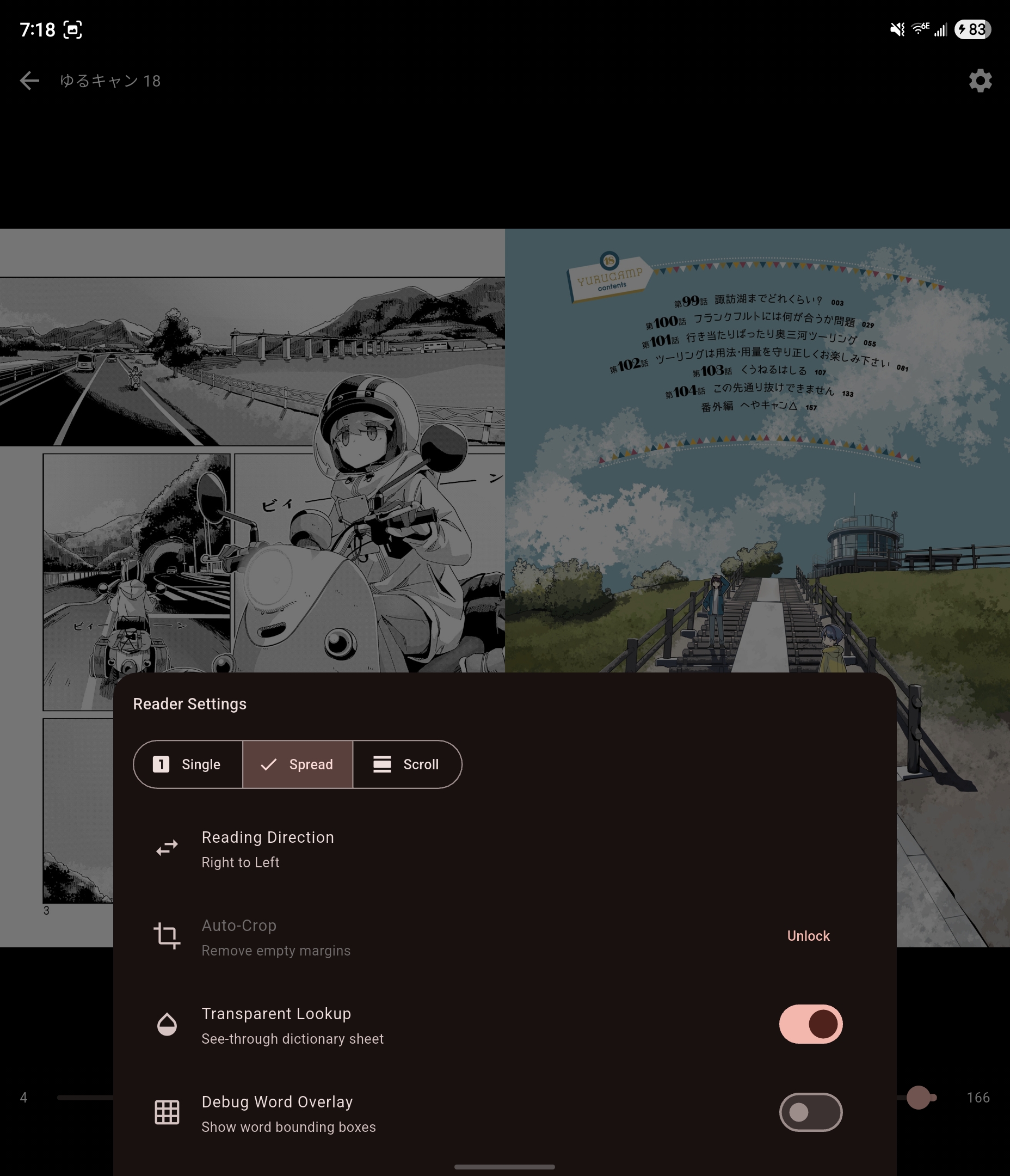
The manga reader supports three view modes:
- Single - one page at a time
- Spread - two-page spreads for double-page layouts
- Scroll - continuous vertical scrolling
Reader Settings
The manga reader settings sheet includes:
- Reading Direction - toggle between right-to-left and left-to-right
- Auto-Crop - Pro feature for a one-time page scan that removes empty borders for the current book
- Transparent Lookup - makes the dictionary sheet more see-through over the page
- Debug Word Overlay - shows word boxes for troubleshooting OCR or Mokuro alignment
Dictionary Lookups
How lookups work depends on the source:
- Mokuro manga - word overlays are ready immediately after import
- CBZ manga - text overlays appear after OCR or after importing external OCR output
Once text overlays exist, tapping a word opens the same dictionary lookup used in the EPUB reader.
OCR Notes for CBZ
CBZ OCR is managed from the library item's long-press actions, not from inside the reader. See Remote OCR and Custom OCR Server.